Apps / Free download for Windows, Mac and Linux

AI Hub

AI Hub puts your AI platforms in one workspace on your own computer. Connect Claude, Codex, API providers and MCP tools, then switch between them without losing the conversation.
What AI Hub is

AI Hub is an app for your computer: Windows, Mac or Linux. It is one place to talk to all the AI you use, such as Claude, ChatGPT and Gemini.

You connect each AI once. After that you can ask any of them, or several at the same time, in the same window.

AI Hub runs on your computer. Your chats, files and keys are saved there. Your messages go only to the AI you pick.

Everything AI Hub can do

This is the full list.

Connect your AI

Claude and Codex
Use the Claude or ChatGPT plan you already pay for. Claude needs the Claude Code program on your computer. ChatGPT needs the Codex program.
Platforms with a key
A key is a secret code from an AI company. AI Hub works with keys in the OpenAI, Anthropic and Gemini styles.
Tools
Add tool servers and programs that the AI can use. A tool server is also called MCP.
Finds what you have
AI Hub looks on your computer for AI programs you already use and shows them under Found on this computer.
A list to pick from
Choose a platform from the list, or press My platform is not listed and add it by hand.

Talk to your AI

Change AI in the middle
Pick another platform or model for your next message. The chat keeps its history. The new AI is sent the chat so far, so it knows what was said.
Ask several at once
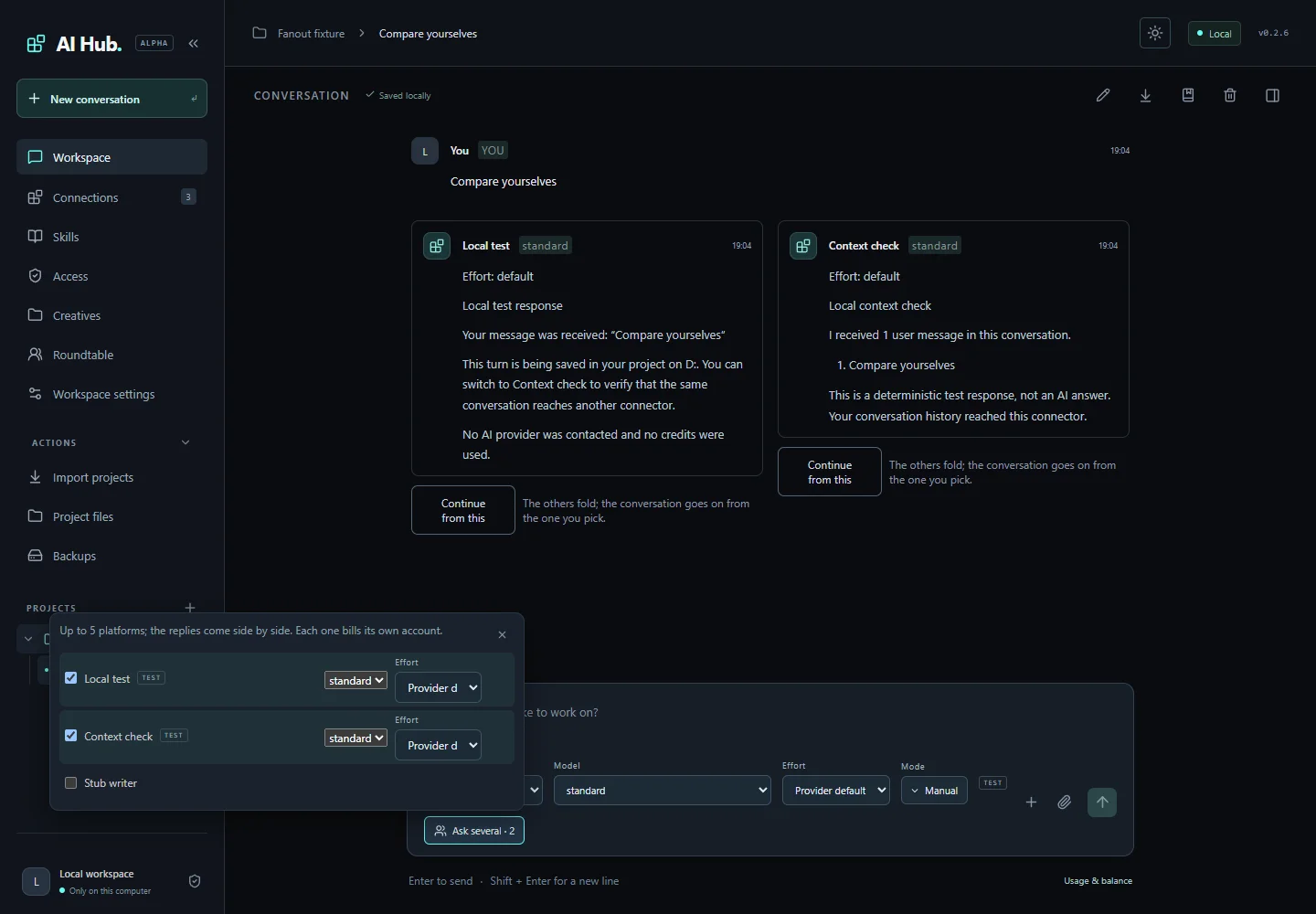
Send one message to 2, 3, 4 or 5 platforms. The answers come side by side. Then pick one and carry on from it.
Let one AI ask another
You can write, for example, "ask Codex to check this". The first AI passes the question on.
Up to four chats on screen
Press Open beside to see chats next to each other.
Add files
Give the AI pictures, PDF files, text files or a whole folder to read.
Stop and be told
You can stop an answer at any time. AI Hub can tell you when a long answer is done.

Roundtable

Several AI, one answer
Ask 2 to 5 platforms to talk a question through. One of them is the chair and gives you the answer for the group.
Safe to try
In a roundtable the AI only read and answer. Your files stay as they are.

Projects and files

Projects
A project keeps chats that belong together in one place. A project called Personal is there when you start.
Look at your files
A side panel shows the files of a project, which ones changed, and a preview of a web page.
Creatives
Pictures, videos, sound and documents that your AI made are kept in one library. You can add your own too.

Bring in and keep your chats

Bring in old chats
Import chats from Claude Code and Codex, and from files saved out of ChatGPT, Claude, DeepSeek, Open WebUI and Kimi.
Save a chat
Save any chat as a file, or into its project folder.
Backups
Make a backup of your projects, chats and skills, and put it back later. Keys are never in a backup.

Skills

Teach every AI the same thing
A skill is a set of instructions. You add it once and every platform you connect can follow it.
Where skills come from
Pick from a list, take one from GitHub or from a folder, or write your own.
Safe by default
A new skill is switched off until you switch it on. AI Hub never runs programs that come inside a skill.

You stay in charge

It asks first
When a tool wants to send a message, pay, delete something for good or download a file, AI Hub asks you first.
Four answers
You can say Decline, Allow once, Allow for this conversation or Always allow.
Choose the mode
A mode sets how much a coding helper may do without asking. You pick it beside the message box.
Rules for each tool
Set each tool to always allow, ask first, or blocked. New tool servers start as read only.

Cost and usage

See what you used
Usage & balance shows the numbers each platform reports, such as plan limits and credit left.
Spending guard
You can set a limit for the calls that AI Hub starts itself.

Your phone

Use it from your phone
Open AI Hub on your phone through an app called Tailscale. You set a phone password on the computer first.
Still on your computer
The chats, files and keys stay on the computer. While the computer is on, your phone can reach them.

Private and up to date

Keys stay locked
AI Hub locks your keys on your computer. Windows uses your account, a Mac uses its keychain, and Linux uses a key file only you can read. They are never sent to the web page you see.
New versions
From the Microsoft Store, AI Hub is kept up to date by the Store. The zip version checks for a new version when it starts and once a day. It shows a message with a link and never installs anything by itself.
Six languages
The screens come in six languages.

How to use AI Hub, step by step

Follow the steps in order. Each step is one thing to do.

  1. Get AI Hub from the Microsoft Store

    This is the easy way on Windows 11. Click the download button on this page, then press Download from the Microsoft Store. Windows installs AI Hub for you.

    Open AI Hub by LSALab from the Start menu. It opens in your web browser, and it starts by itself when you sign in. Then go to step 5.

    On Windows 10, a Mac or Linux, use the zip file instead. Steps 2 to 4 show how.

  2. Unzip the download

    Click the download button on this page. It gives you the file for your computer.

    On Windows, right-click the file and choose Extract All. On a Mac, double-click it. Put the folder anywhere you like. Do not start AI Hub from inside the zip file.

  3. Run the installer

    On Windows, open the folder and double-click Install AI Hub.cmd.

    On a Mac or Linux, open the Terminal in the folder, type ./install.sh and press Enter.

  4. Wait for AI Hub to open

    AI Hub opens in your web browser.

    It also adds a shortcut (on the desktop on Windows, in Applications on a Mac, in the apps menu on Linux) and starts by itself when you sign in to your computer.

  5. Click Connect your AI

    You see a page that says Start here. Click Connect your AI.
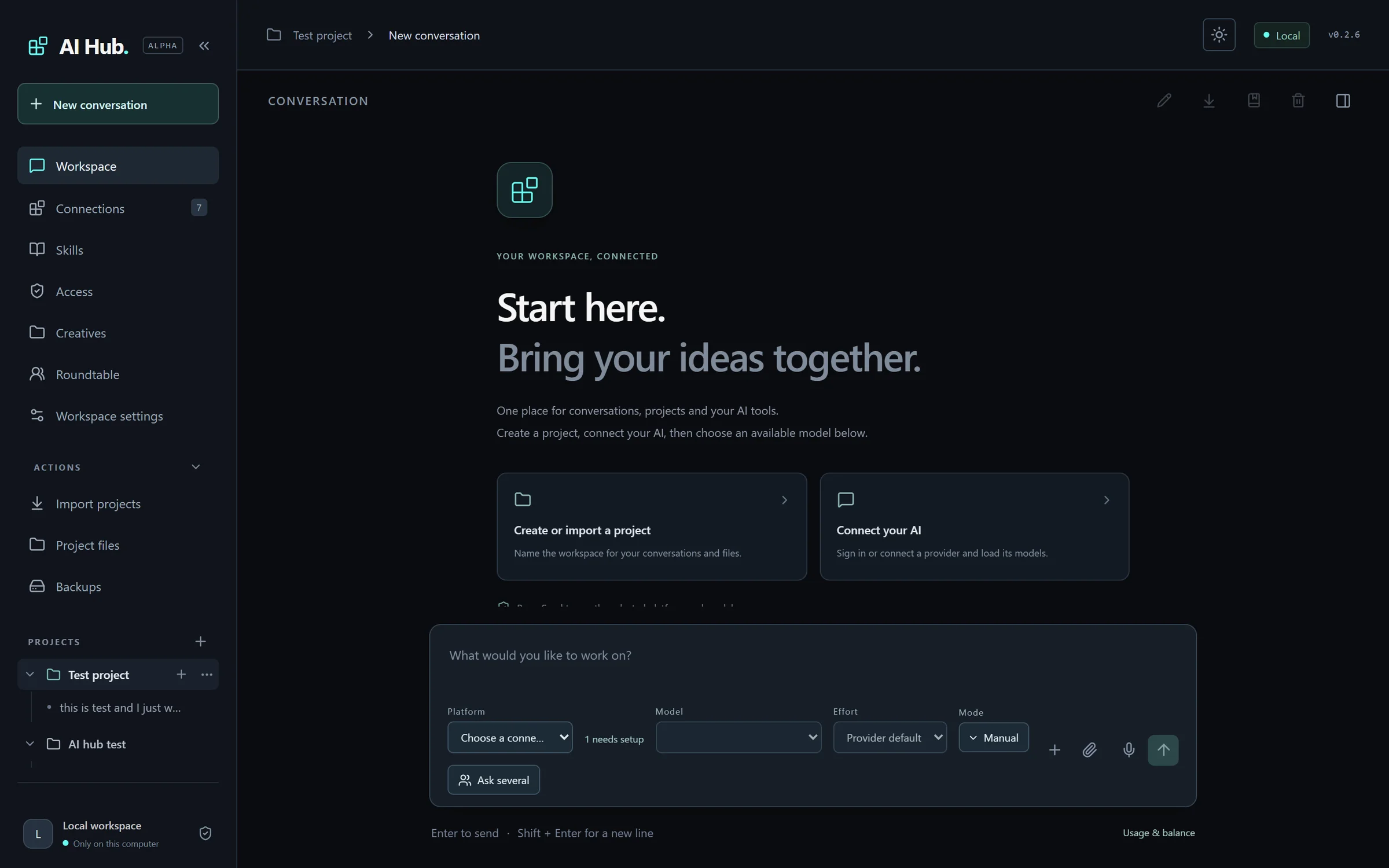
    The first screen of AI Hub, with the words Start here and two buttons: Create or import a project, and Connect your AI
    The first screen.
  6. Pick a platform

    If AI Hub found one on your computer, click it under Found on this computer.

    If not, click Add connection and choose your platform from the list.
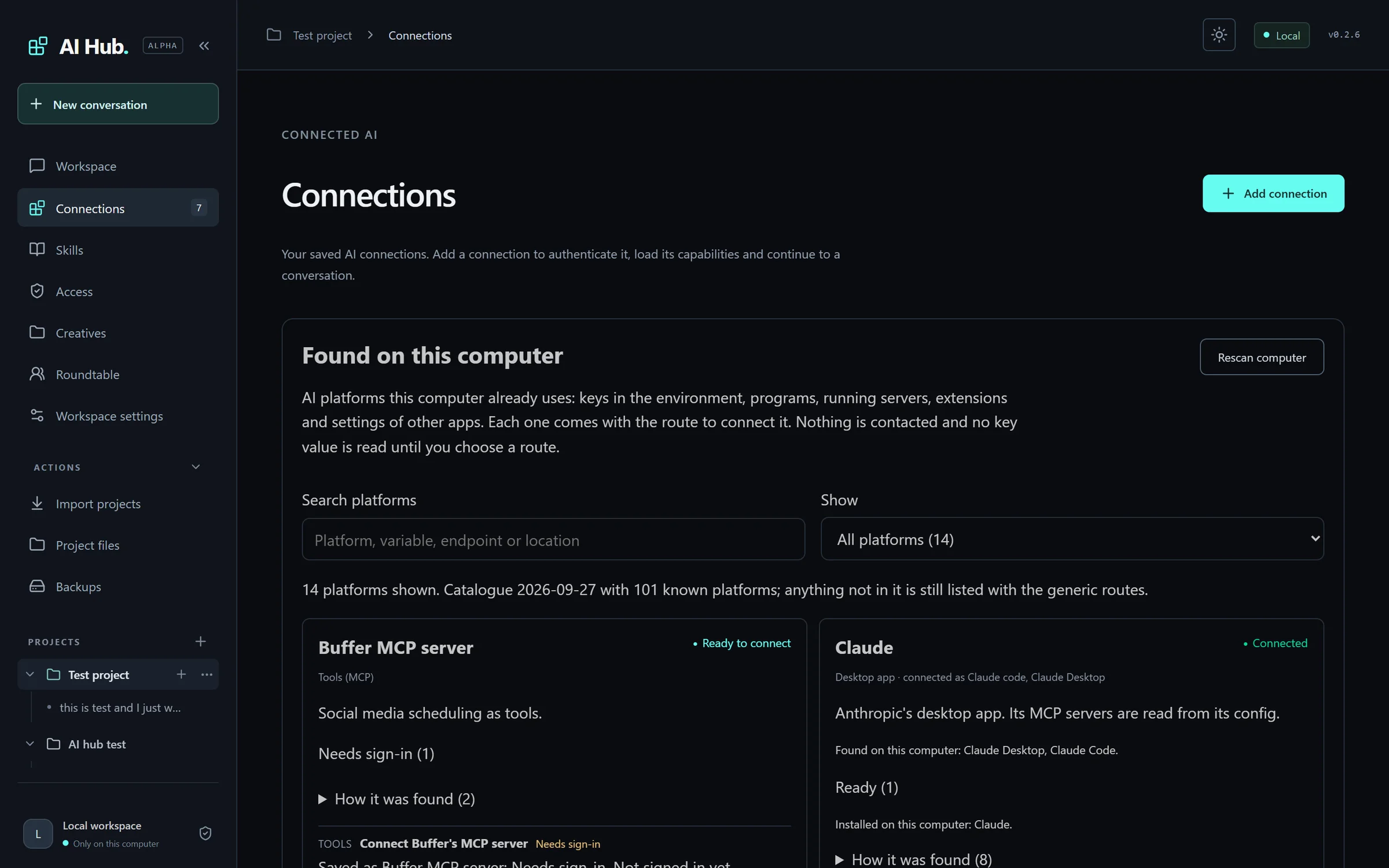
    The Connections page of AI Hub, with the platforms found on this computer and the saved connections
    The Connections page.
  7. Sign in or paste your key

    For Claude or Codex, sign in when the browser asks. For other platforms, paste the key from your account.

    Click Connect. AI Hub says Connection ready and opens a chat.

  8. Send your first message

    Type in the box that says What would you like to work on?

    Check the Platform and Model beside the box. Press Enter.
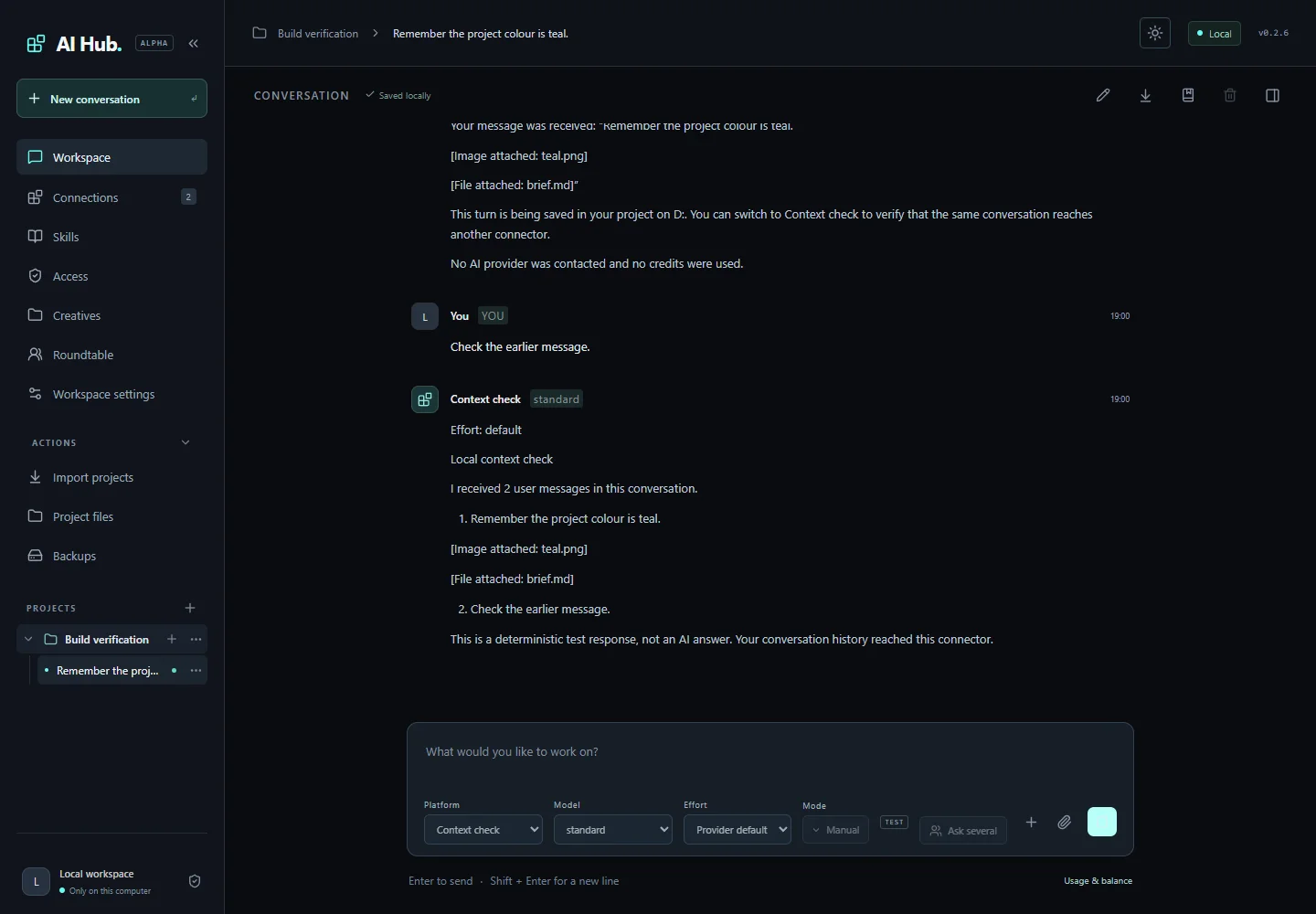
    A conversation in AI Hub with the message box and the platform and model selectors below it
    One conversation.
  9. Try asking several at once

    Connect a second platform the same way. Then click Ask several and tick the platforms you want.

    Send one message. The answers come side by side. Click Continue from this under the one you like.
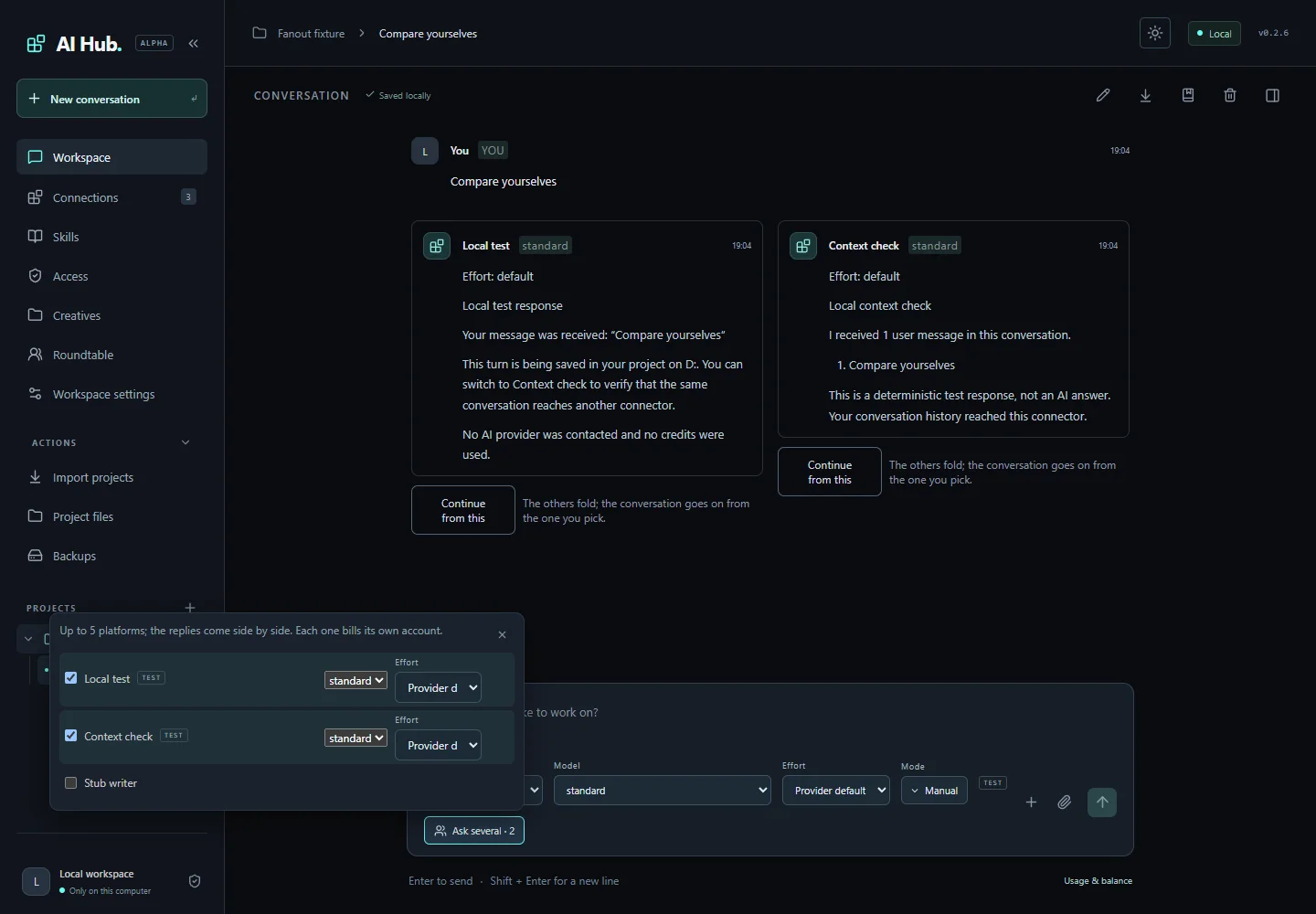
    AI Hub showing two answers side by side to the same message, with a Continue from this button under each
    Two platforms answering the same message.

What you need and what it costs

What you need

  • A computer with Windows (64-bit), a Mac with Apple silicon (M1 or newer), or Linux on a 64-bit Intel or AMD chip. AI Hub from the Microsoft Store needs Windows 11.
  • Nothing else to install. AI Hub brings what it needs.
  • At least one AI to connect: a Claude plan with Claude Code, a ChatGPT account with Codex, or a key from an AI company.
  • For your phone: the free Tailscale app and a Tailscale account.

What it costs

  • AI Hub is free. You can support it if you want to, but you never have to.
  • Each AI platform charges your own account, the same as when you use it without AI Hub.
  • AI Hub shows the usage that each platform reports.

Words used on this page

AI platform
A service that answers your questions with AI, such as Claude, ChatGPT or Gemini.
Model
One AI brain inside a platform. A platform can have several, some faster and some smarter.
Connection
A platform you have linked to AI Hub, so you can use it there.
Key
A secret code from an AI company. It lets an app use the AI in your name. It is also called an API key.
Tool server (MCP)
A small program that gives the AI extra tools, such as reading a calendar.
Skill
A set of instructions you add once. Every platform can follow it.
Roundtable
A talk between 2 to 5 AI platforms that ends in one answer.
Mode
How much a coding helper may do without asking you.
Project
A place that keeps related chats and files together.
Tailscale
An app that links your phone to your computer over a private connection. A basic account is free.